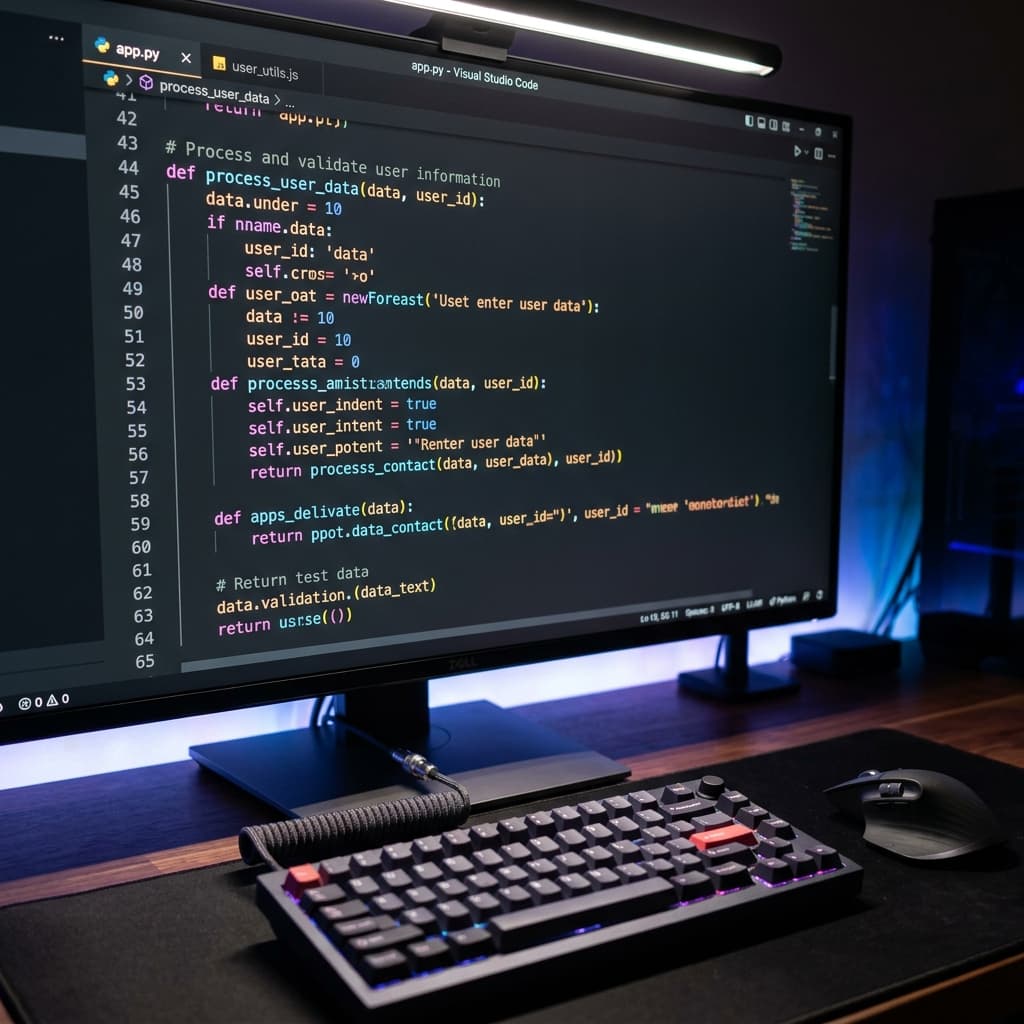
Learn keyboard shortcuts for your OS
Master a handful of system shortcuts that will save you minutes every single day.
- Time:
- 30 min
- Cost:
- free
- Difficulty:
- easy
- Where:
- Indoors
- Best:
- Solo
Printing a cheat sheet of two hundred shortcuts and pinning it to the wall does nothing, which most people discover once. The way to learn keyboard shortcuts that stick is to pick five actions you genuinely repeat all day and refuse to do them with the mouse for a week. Everything else is noise.
Why learn keyboard shortcuts for your OS is worth an hour
The saving per shortcut is tiny, perhaps two seconds, which is why breadth is pointless and frequency is everything. An action you perform sixty times a day repays the learning cost within a two weeks; one you perform weekly never will. Restricting yourself to the mouse-free version also forces recall rather than recognition, which is what actually builds the habit.
How to learn keyboard shortcuts for your OS step by step
- 1
Watch yourself for ten minutes
Note which mouse actions repeat. Switching windows, searching, screenshots, and tab management dominate for most people.
- 2
Pick five, no more
Five is roughly the number a person can adopt in a week. Twenty produces zero retained shortcuts.
- 3
Write them on a sticky note
On the monitor edge, in view. Remove it when you stop needing to look, which is the point of the exercise.
- 4
Ban the mouse for those five
Force yourself to recall rather than reach. The brief frustration is the mechanism; recognition alone teaches nothing.
- 5
Add window management next
Snapping, virtual desktops, and application switching are the highest-frequency category almost everyone under-uses.
Tips to get more out of it
- Learn the universal ones first. Copy, paste, undo, find and select-all work almost everywhere, including inside applications.
- Most applications let you rebind. If a shortcut is awkward on your keyboard layout, change it rather than fighting it.
- Add a clipboard manager once the basics are automatic. It changes what copy and paste can do entirely.
Ways to mix it up
If your basics are solid, spend the hour learning your main application's command palette, which usually replaces dozens of individual shortcuts with one. If you switch between operating systems, learn the small number that differ rather than trying to hold two full sets.
Learn keyboard shortcuts for your OS: frequently asked questions
Which keyboard shortcuts are worth learning first?
Window and application switching, search, and screenshots. These have the highest daily frequency for almost everyone regardless of job.
How many can I learn at once?
About five per week. Beyond that, none of them consolidate and you end up retaining nothing at all.
Do shortcuts actually save meaningful time?
For high-frequency actions, yes, though the bigger benefit is staying in flow rather than the seconds themselves.
Related activities
Skills
Practice typing speed exercises
Typing speed exercises work best when they give you something specific to practise: awkward keys, punctuation, numbers or copying real sentences.
Organization
Declutter your digital workspace
Tidy your desktop, close those 47 browser tabs, and uninstall apps you never use.
Skills
Learn Markdown for faster note-taking
Spend 20 minutes learning Markdown and format notes and documents at the speed of typing.